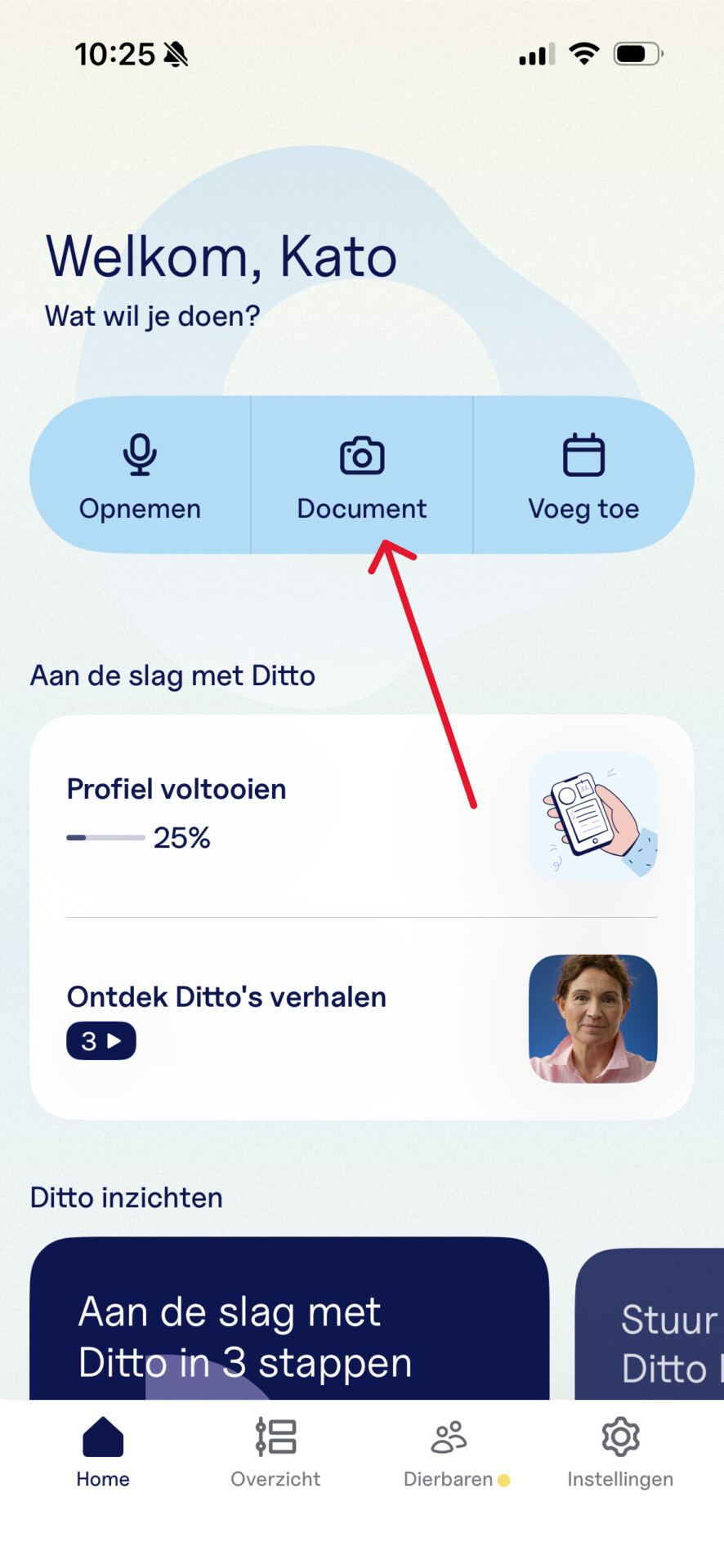
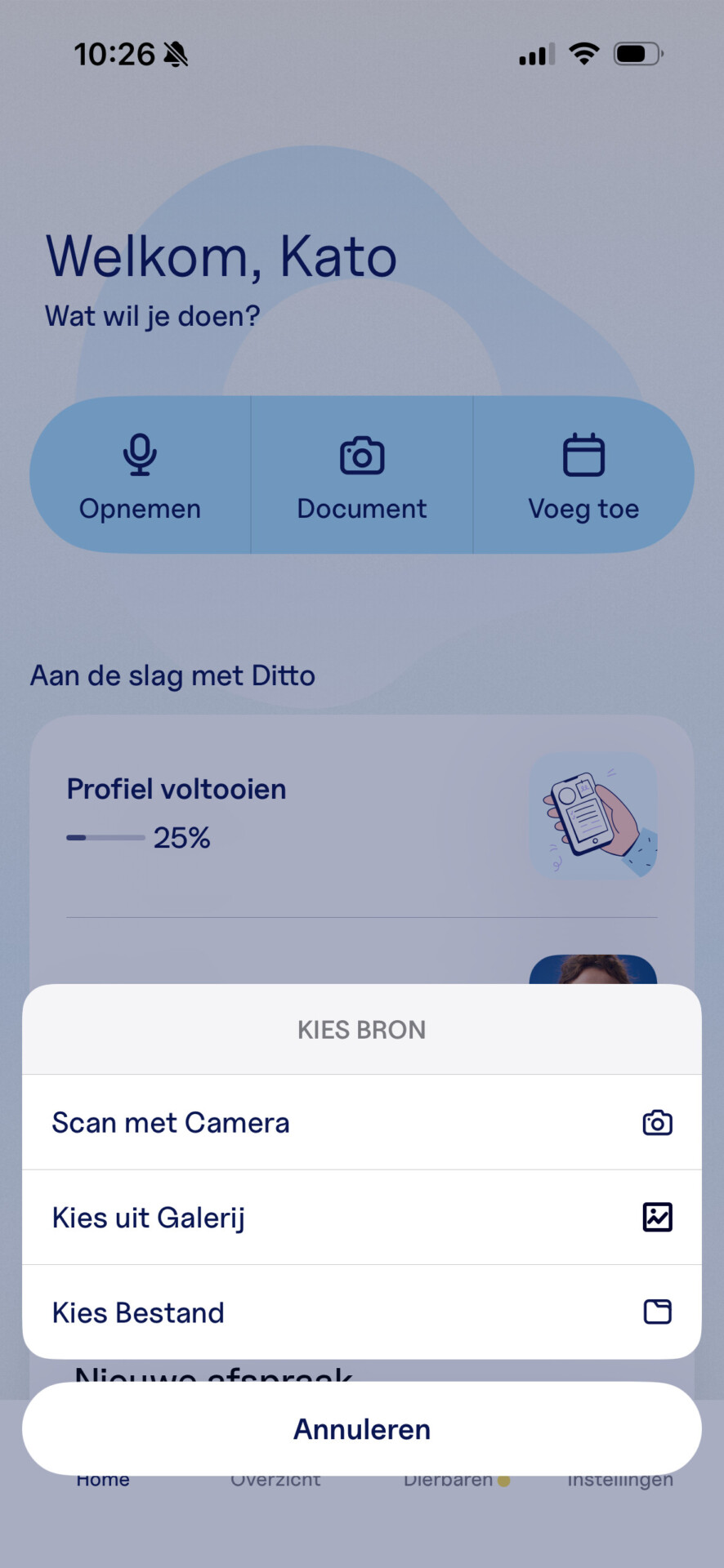
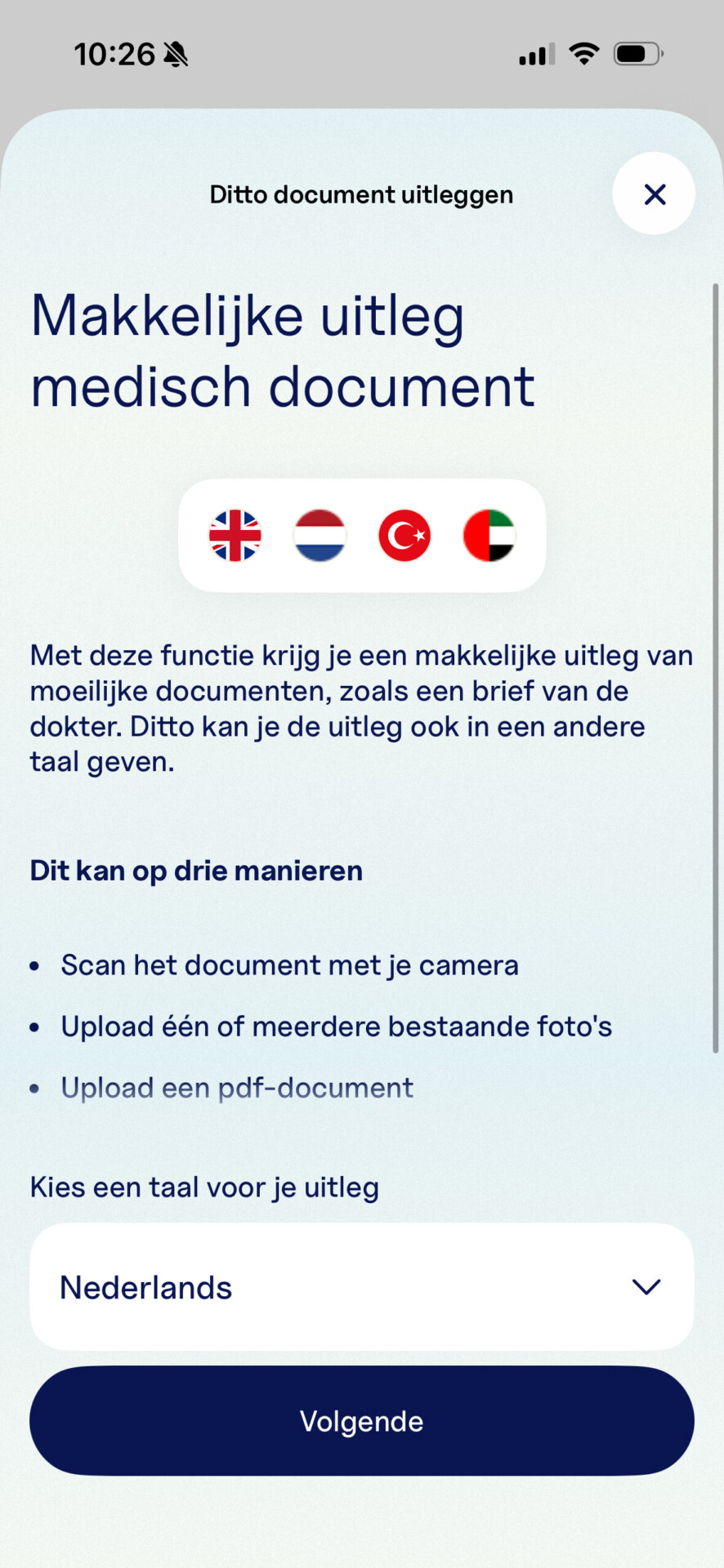
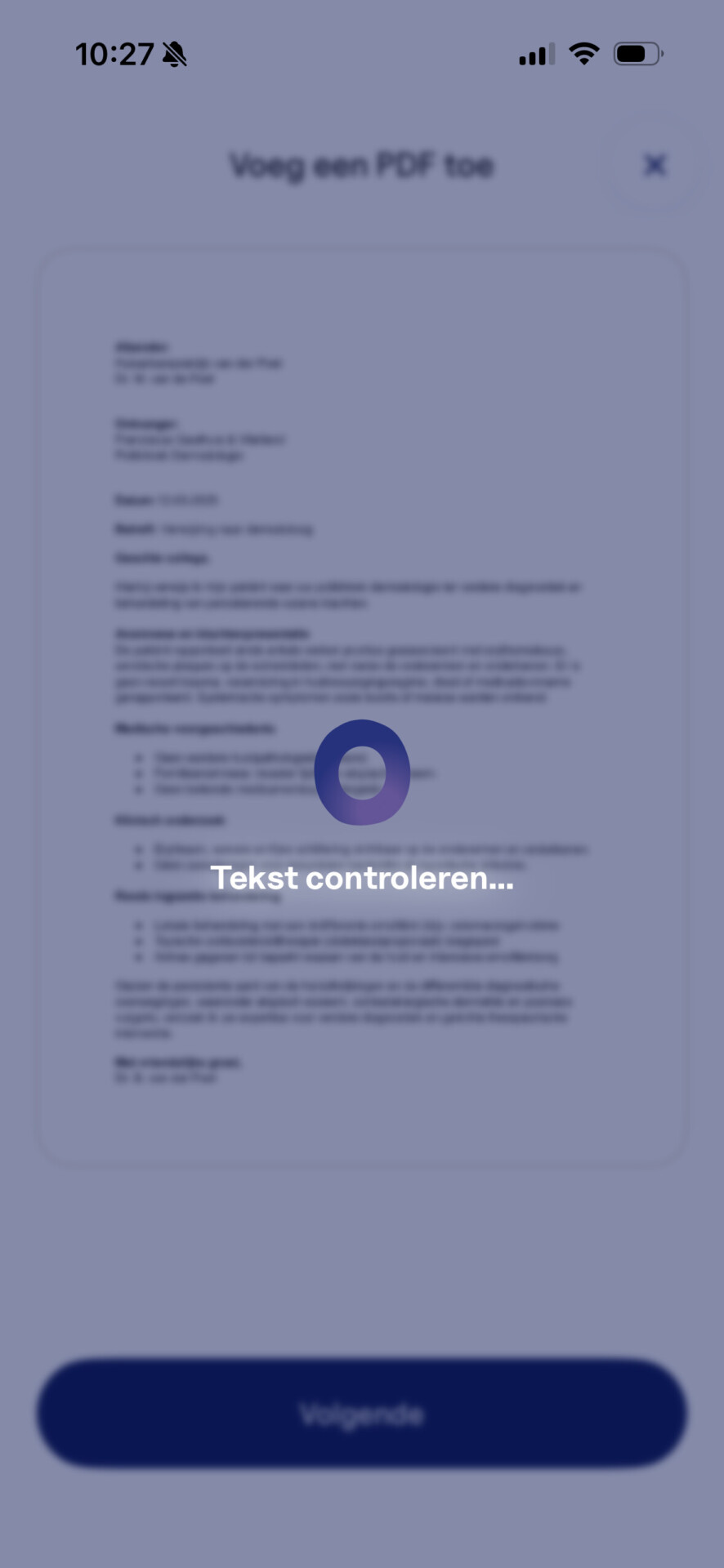
Home / Subjects / Ditto / How can I have documents explained in Ditto? How can I have documents explained in Ditto? Voorlezen Translate Printen Delen WhatsApp E-mail Steps in brief Open the Ditto app on your phone and log in. Click on '‘Document‘'. Choose a source for the document. Choose a language Thank you for your explanation. Add a document. View the summary of the document. 1. login Open the Ditto app. Log in with your email address and password. You can also log in via Google or Apple. 2. Go to documents After logging in, you will arrive at the homepage. Click on '‘Document‘'. You can now add your documents. Vergroot 3. Choose a source You can a add document. This is possible on three ways: – By the document scan with the camera. – By a file upload from the gallery. – By a to choose file of your device. Vergroot 4. Choosing a language You can now the choose language for the explanation. Click on the down arrow. Choose the language which you want. Then click on '‘Next'. Vergroot 5. Add a document Add the document towards the method you chose earlier. Click on '‘Next‘'. 6. Checking the text The text is becoming checked and incorporated. You now see a summary of the document. Vergroot Frequently asked questions about Ditto How do I create an account at Ditto? How do I start a recording in Ditto? How do I invite loved ones to Ditto? How do I add an appointment in Ditto?