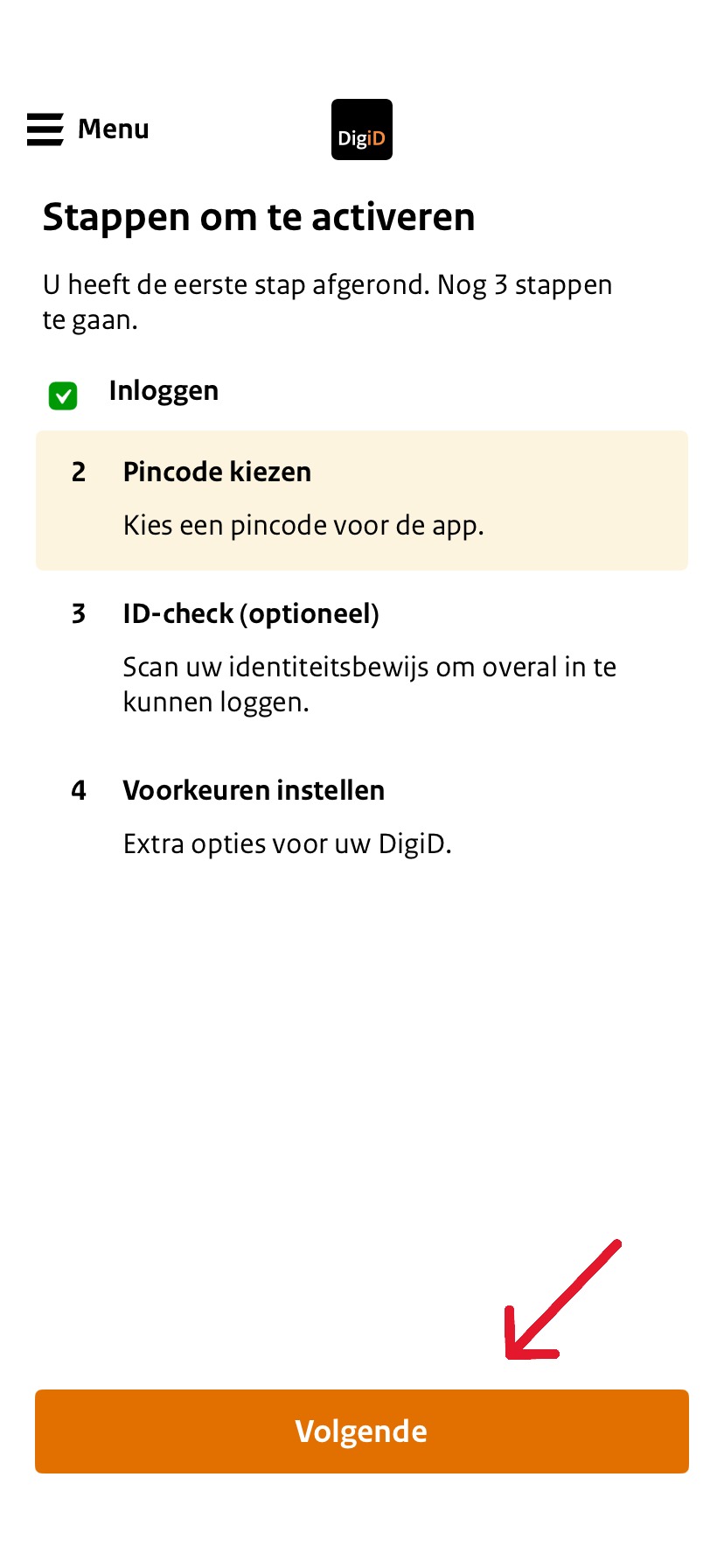
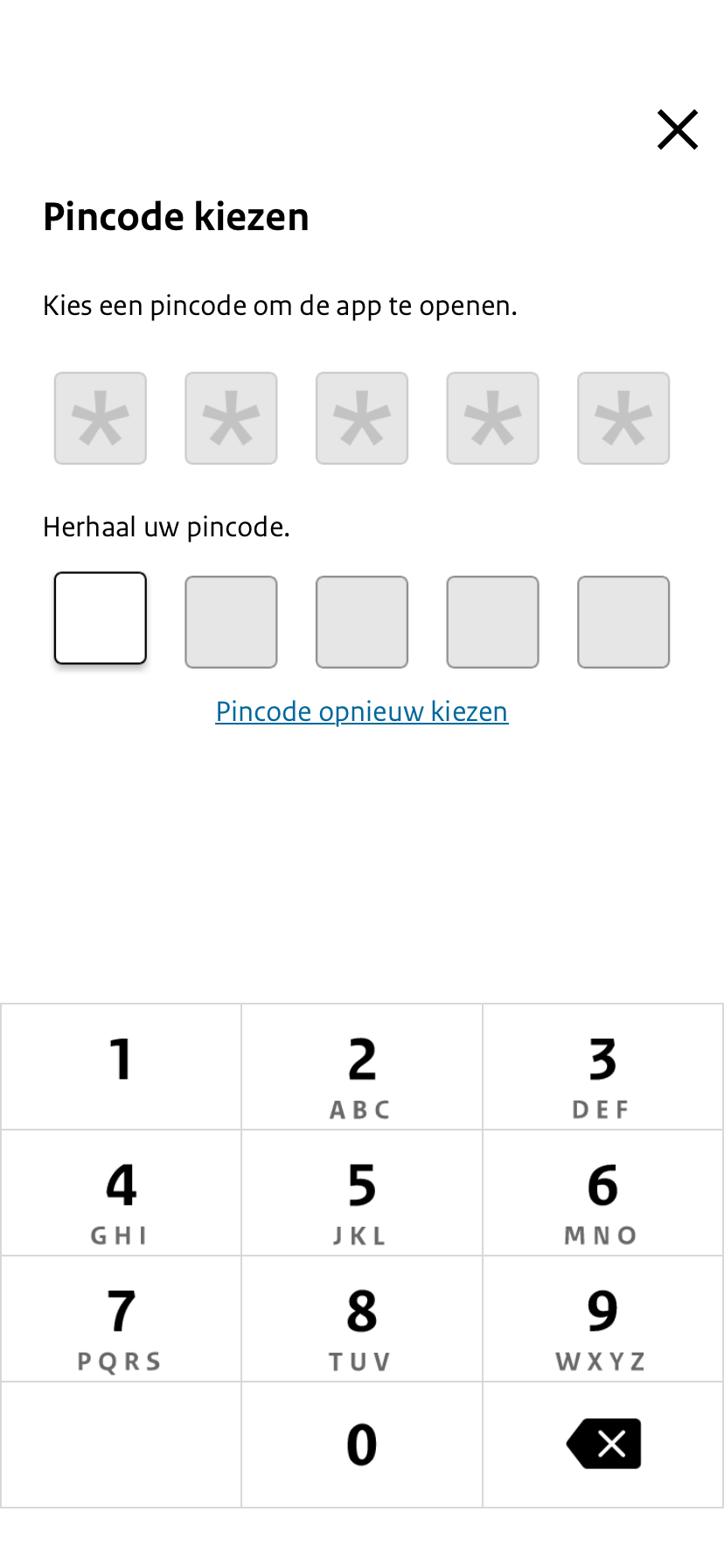
Home / Subjects / DigiD / How do I activate the DigiD app on my phone? How do I activate the DigiD app on my phone? Voorlezen Translate Printen Delen WhatsApp E-mail To the DigiD app To use, you must first activate the app. To activate, you need proof of identity: - An driver's license - An identity card – or a passport. You also have a telephone needed with a NFC function. If your phone no NFC reader has, then look at this page: Activate DigiD without NFC. Steps in brief Download the DigiD app on your phone. Log in with your username and password. Invent a PIN code. Scan your proof of identity. After scanning, you can adjust your preferences. Fill in your email address in and press ‘'Finished'. 1. Download the app Download the DigiD app on your phone or tablet. After installing you can open the app. Need help downloading? Click below for explanation: General institutions Digital self-help 2. Activate app When you open the app, you will see the steps to activate the app. Read all the steps carefully. Then press 'Next one'. Vergroot 3. login Log in now with your DigiD username and password. Press 'Next one'. Vergroot 4. Create PIN code Press '‘Next'. Vergroot You can now a PIN code invent. You will use this code later to the DigiD app to open. Fill the PIN code twice in order to prevent errors. Vergroot Do both codes match? Then you will automatically return to the step-by-step overview. Press ' again‘Next‘'. 5. ID check You can the ID check carry out. This is optional. Grab it proof of identity that you want to use. Press '‘Perform ID check'. Vergroot Keep your proof of identity on the back of your phone. If the app your proof of identity recognizes, you see that it is being scanned. Do you see this message notShift your proof of identity until you see the notification and the percentage 100% reaches. 6. Submit preferences After that, you will receive the page. ‘Preferences. Here you can indicate whether you want to receive messages from the app. The slider is automatically raised 'On'. Then press 'Next one'. 7. Provide email address If there are none yet email address is known, you can now to report. You can also skip by clicking on ‘I do not want to provide an email address. Do you have a email address given up? Then you will receive a control code via e-mail. Fill the code in the app in. Press '‘Next‘'. You now see the message that your email address is checked. Press 'OK' and then on '‘Finished!‘'. Frequently asked questions about DigiD How do I download and install the DigiD app on my computer? How do I log in to DigiD with the DigiD app on my computer? How does CheckID for DigiD work? What is the annual ID check with DigiD and how does it work? How do I perform the annual DigiD ID check? In what ways can I log in with my DigiD? How do I log in to my child's patient portal with DigiD? How do I activate the DigiD app without NFC? How do I log in to DigiD with SMS verification? How do I log in to DigiD with the DigiD app on my phone? How do I log in to DigiD with a driver's license or identity card? How does authorizing via DigiD work?